
A plain white background makes a product photo look tidy and puts the attention on the object. It is what many shop listings and catalogues use. Getting there usually means cutting the object out by hand or paying for an editing app.
This guide shows how to change a photo background to white with OpenPixels, a free tool that runs in your browser. It finds the object, replaces everything behind it with white and saves the result to your device. The photo is not uploaded anywhere.
The short answer
Open OpenPixels, choose the photo, open More options and set Background to Make it white. Press Enhance, then Save the photo. There is no account to create.
Get a clean result
The tool has to tell the object apart from what is behind it, so a little care when you take the photo pays off.
- Photograph one object at a time, with some space around it.
- Choose a background that contrasts with the object: a dark mug on a light table, a light shoe on a dark floor.
- Use even light and avoid hard shadows falling behind the object.
- Keep the object in focus. If the photo itself is soft, see how to fix a blurry photo as well.
It works best on a single object with a clear outline.
Step by step
- Open openpixels.app and press Choose a photo, or drop the photo anywhere on the page.
- Under Size, choose Same size, just cleaner to keep the photo at its current size. Choose 2× if you also want it larger.
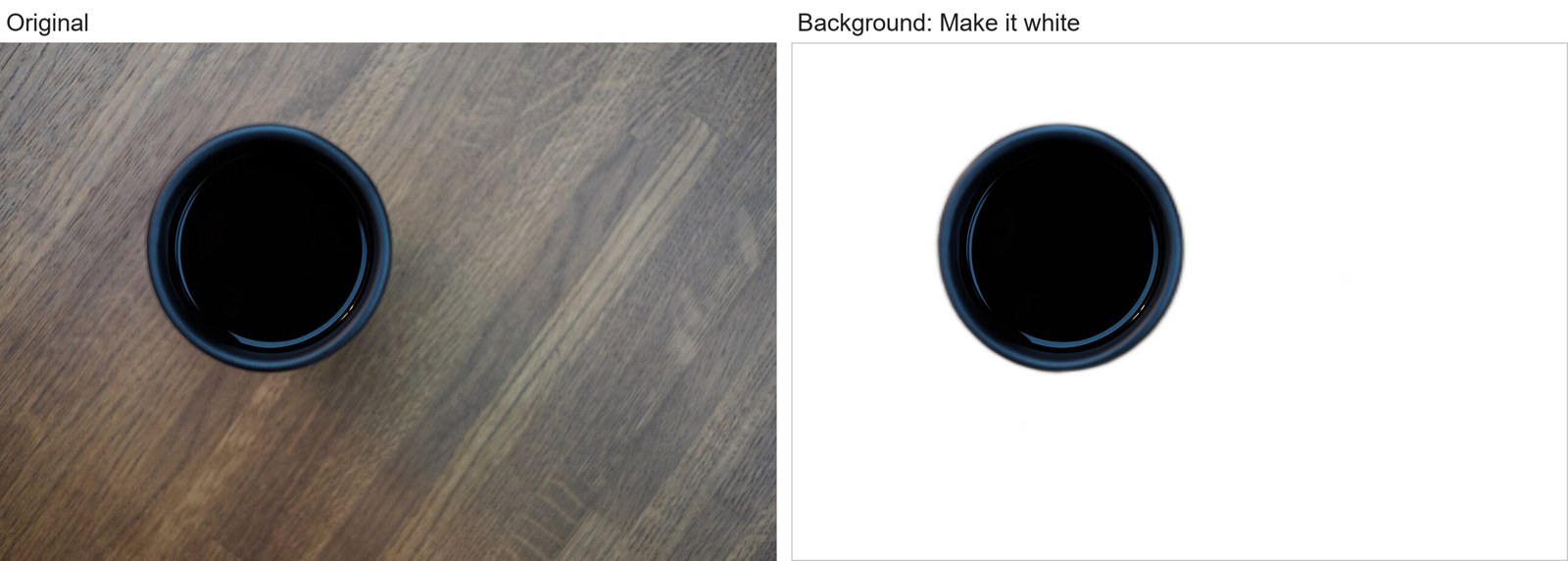
- Open More options. Under Background, choose Make it white. The note above the Enhance button tells you how much the first run downloads; with this option it is 16 MB.
- Press Enhance. When it finishes, drag the slider across the picture to compare Original with Result.
- Press Save the photo. You get a PNG with a white background. Keep your original file as well.
How white is the white
The new background is pure white, red, green and blue all at 255, rather than a light grey. It stays white when you place the photo on a white page or upload it to a listing that expects a white background, so there is no visible box around the picture.
Need a transparent background instead?
Choose Remove it under Background instead of Make it white. The saved PNG then has a transparent background, ready to place on a coloured page or in a design. There is more about this on the transparent background maker page.
Your photo stays on your device
OpenPixels does the work inside your browser tab and saves the result straight back to your device. The only things it downloads are the app and the models. The privacy policy explains what the site does count.
FAQ
Can I change a photo background to white for free?
Yes. OpenPixels is free, needs no account and adds no watermark.
Is my photo uploaded?
No. It is processed in your browser tab and saved to your device.
Can I make the photo larger at the same time?
Yes. Choose 2× under Size before you press Enhance.
What format is the saved photo?
PNG.