
Old photos rarely reach a screen in good shape. A print from a family album gets photographed on a phone, a scan comes out small, and the picture is soft and grainy. The faces, the part you care about most, are usually the least clear.
This guide shows how to restore old photos with OpenPixels, a free tool that runs in your browser. It sharpens the faces, enlarges the picture and clears the grain, on your own device. Your family photos are not uploaded anywhere.
The short answer
Open OpenPixels, choose the photo, switch on Rebuild faces and press Enhance. The photo comes back twice the size, with clearer faces. Press Save the photo to keep it. There is no account to create.
Start with the best copy you have
The result depends on what you give it.
- If you can, scan the print. If you photograph it instead, lay it flat, light it evenly and keep reflections off the surface. Fill the frame with the photo.
- Use the original file. A copy that has been sent through a chat app or saved as a screenshot is smaller and more compressed.
Step by step
- Open openpixels.app and press Choose a photo, or drop the photo anywhere on the page.
- Under Size, choose 2×. For a very small scan, try 4×.
- Leave What is it on Photograph and Noise and grain on Reduce. If the photo is very grainy, choose Remove.
- Switch on Rebuild faces. The first time, it downloads a large model (about 340 MB) and shows the progress. After that the model stays in your browser.
- Press Enhance. When it finishes, drag the slider across the picture to compare Original with Result.
- Press Save the photo. You get a PNG. Keep your original file as well.
What Rebuild faces does
A face in an old group photo may be only a few dozen pixels across, so enlarging the whole picture leaves it soft. Rebuild faces works on each face separately: it finds the faces, restores them at a higher resolution and blends them back into the photo.
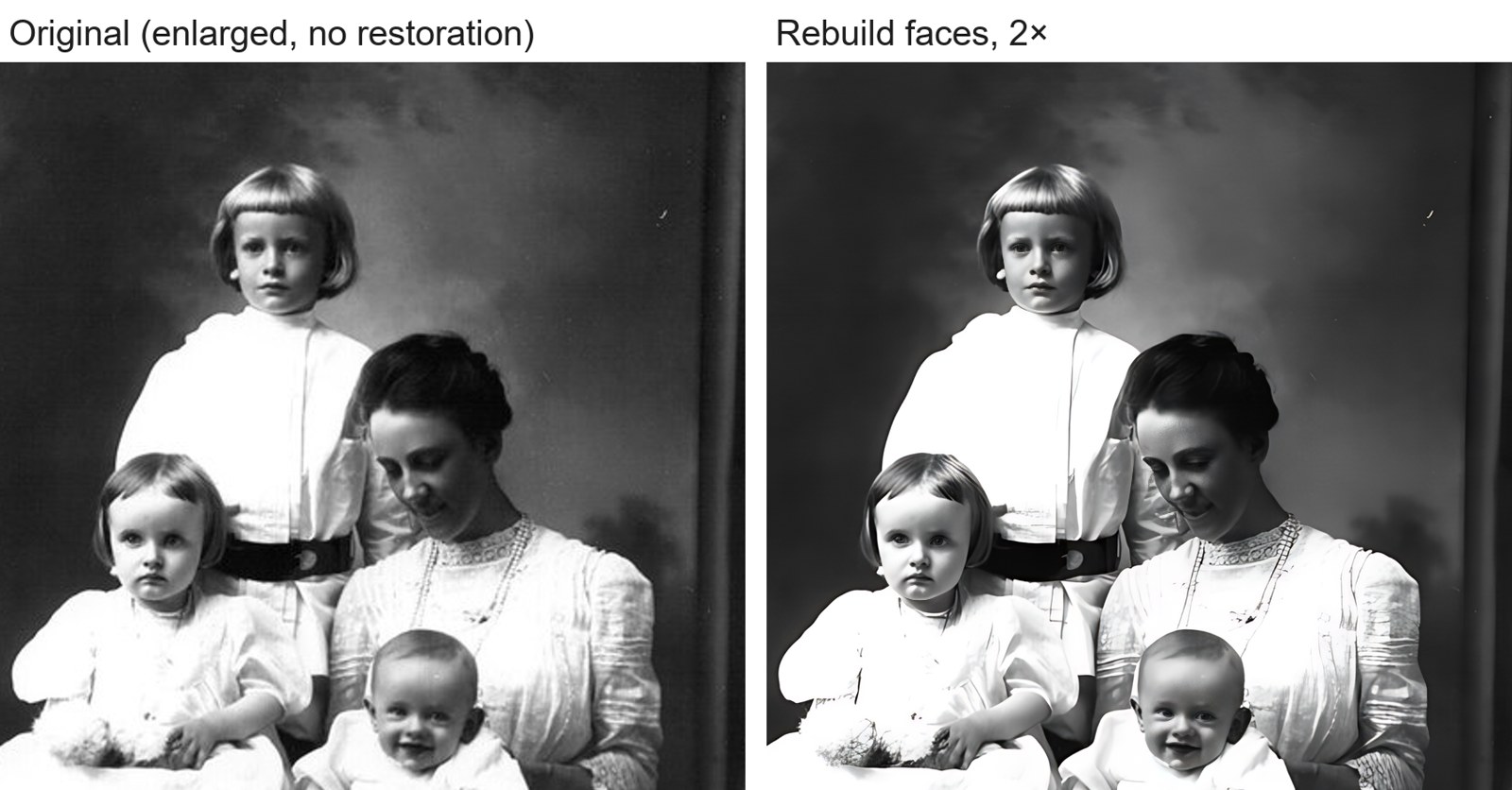
The faces model is large, and it is slow on a computer without a graphics card. Give it a minute on the first run.
Reading the result
Under the picture is a panel headed What changed. For the portrait above it reads "8.3x sharper" and "1280 × 1712, from 640 × 856".
You may also see Faithful to the original. The app shrinks its result back to the size you started with and checks that it still matches your photo. There is a longer explanation in how OpenPixels checks its own work.
If the whole photo is soft rather than just the faces, the settings in how to fix a blurry photo apply here too.
Your photos stay on your device
Old family photos are personal, and many online restoration services work by uploading them to a server. OpenPixels processes the photo inside your browser tab and saves the result straight back to your device. The only things it downloads are the app and the models. The privacy policy explains what the site does count.
FAQ
Can I restore old photos for free?
Yes. OpenPixels is free, needs no account and adds no watermark.
Is this photo restoration AI?
Yes. Machine-learning models do the work (Real-ESRGAN to enlarge, GFPGAN to restore faces), and they run in your browser rather than on a server.
Is my photo uploaded?
No. It is processed in your browser tab and saved to your device.
How large can I make an old photo?
Up to 8×. For an old print, 2× or 4× is usually enough.