
Upscayl is one of the best-known free AI image upscalers. It is open source and runs on Windows, Mac and Linux. The desktop app has to be installed, though, and its own documentation says it needs a graphics card that supports Vulkan; many integrated graphics chips will not run it. Upscayl Cloud works on any device, but after a free trial it is paid for in credits.
That leaves a gap. You might be on a work laptop where you cannot install software, on a Chromebook, on an older computer without a separate graphics card, or on your phone. OpenPixels covers that case: it is a free, open-source photo upscaler that runs in the browser tab you already have open.
The short answer
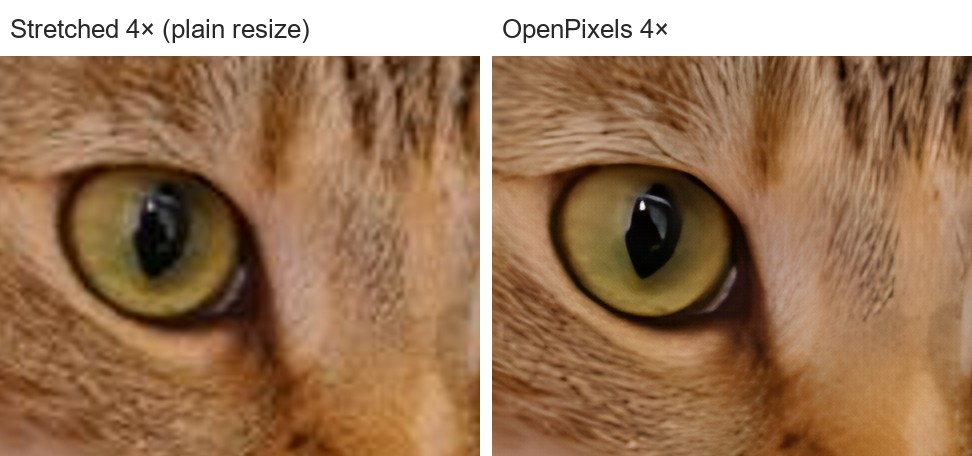
Open OpenPixels, press Choose a photo, pick 2×, 4× or 8× under Size, and press Enhance. When it finishes, press Save the photo. There is nothing to install and no account to create, and the photo is not uploaded.
No graphics card needed
OpenPixels runs the AI model inside your browser. Where the browser supports WebGPU it uses your graphics chip, built-in ones included. Where it does not, it runs on your processor instead. The result is the same either way; on the processor it simply takes longer.
Step by step
- Open openpixels.app and press Choose a photo, or drop the photo anywhere on the page.
- Under Size, choose how much larger to make it: 2×, 4× or 8×. If the photo is already big enough and only needs cleaning up, choose Same size, just cleaner.
- Press Enhance. The first run downloads the model; the note above the button tells you how much (11 MB with the default settings in a browser with WebGPU, 8 MB without). After that it works offline.
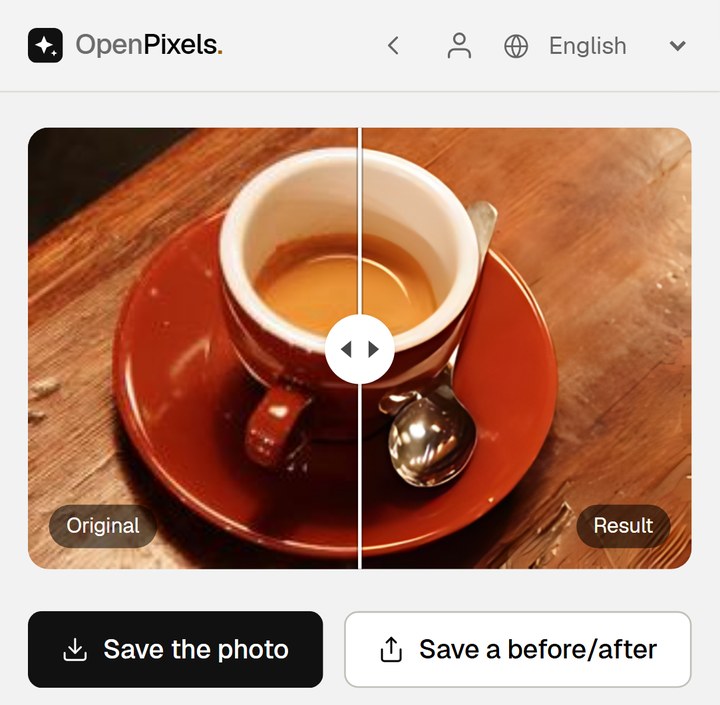
- Drag the slider across the picture to compare Original with Result. The What changed panel shows how much sharper the photo is, how much noise was removed and the new size.
- Press Save the photo. Keep your original file as well.
For more on the settings, see the image upscaler page. If the photo is out of focus rather than just small, how to fix a blurry photo covers that.
On a phone
The same page works in a phone browser. Choose a photo from your gallery, then follow the steps above. Phones are slower than computers, so a large photo can take a few minutes. Start with 2×, and keep the screen on until it finishes.
Is the result real detail?
An AI upscaler fills in detail that the small photo does not contain, so it is fair to ask whether that detail is made up. After each run OpenPixels shrinks the result back to the original size and compares it with your photo. If they still match, it says Faithful to the original, meaning the detail was enlarged rather than invented.
Your photo stays on your device
Everything happens inside your browser tab, and the result is saved straight back to your device. The only things OpenPixels downloads are the app and the models. The privacy policy explains what the site does count.
Already using Upscayl?
If Upscayl runs well on your computer, there is no reason to switch. OpenPixels is for the times when it cannot: a device where you cannot install anything, one without a suitable graphics card, or a phone. If you would rather have an app, OpenPixels also has Mac, Windows and Android apps that enlarge photos with the same models.
FAQ
Is OpenPixels free?
Yes. It is free, needs no account and adds no watermark. It is also open source.
Do I need a graphics card?
No. It uses your graphics chip through WebGPU when the browser supports it, and your processor when it does not.
Does it work on a phone?
Yes, in the phone's browser. Large photos take longer than on a computer, so start with 2×.
Is my photo uploaded?
No. It is processed in your browser tab and saved to your device.
How large can I make a photo?
Up to 8× its original size.