
AI upscaling before and after: one photo, every setting written down
This is what AI upscaling in OpenPixels (openpixels.app) does to one small, compressed photo: 625 × 415 pixels in, 2500 × 1660 out, 4× in a browser tab. The input file, the models, the settings and the timings are all below, so you can repeat this AI upscaling test and check every figure. OpenPixels is a free, open source photo enhancer; the photo is never uploaded.
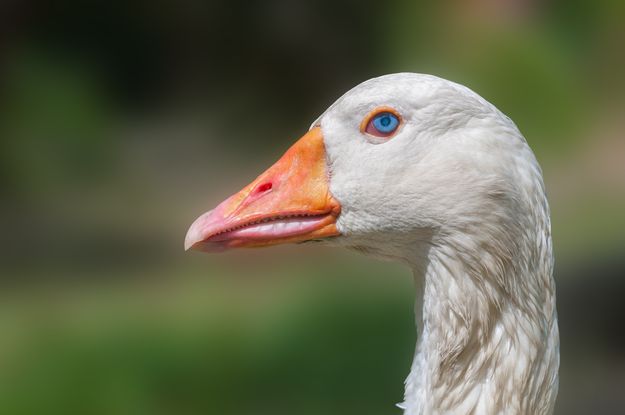
A public-domain photo, made small on purpose.
The original is “Domesticated goose head, Chaguaramal, Venezuela” by Wilfredor on Wikimedia Commons, 2500 × 1660, released under CC0 1.0 (public domain dedication). It is a sharp photo, which is the point: because the full-size original exists, every AI upscaling result here can be checked against the real thing.

We shrank it to a quarter of its width and height
(625 × 415, Lanczos, Pillow 12.2) and saved it as a
JPEG at quality 80. That 24 KB file is the input, published
unchanged: goose-input-625x415.jpg,
sha256 97da820199b4b5285b42e17e4e543f53c0b45ba40dd7ccaa2c84c7ec07cbdfc8.
Two AI upscaling runs, and what each one used.
| Run 1 | Run 2 | |
|---|---|---|
| Size | 4× | 4× |
| What is it | Photograph (the default) | Photograph, best quality |
| Noise and grain | Reduce (the default) | Reduce (not used by this model) |
| Rebuild faces, Add colour, More options | Off, off, untouched | Off, off, untouched |
| Model file | realesr_general_x4v3_dn50.onnx, 4.9 MB | realesrgan_x4plus_w16.onnx, 33.7 MB |
| Result | 2500 × 1660 | 2500 × 1660 |
| Time, model already downloaded | 2.9–3.4 s | 53.5–58.7 s |
| Time, first run (with the download) | 17.5–55.7 s | 64.9–251.3 s |
Both AI upscaling models are Real-ESRGAN models. The second is the RealESRGAN x4plus network, stored with its weights at half size and computed at full precision. The app fetched both from a pinned commit of its public model repository on Hugging Face and checks each file against its sha256 before use [1][2][3].
The device. An Apple M2 MacBook Air with 16 GB of memory, macOS 14.2, Google Chrome 155 driven by a script (headless), with WebGPU available to the page. The app uses WebGPU when the browser has it and the processor when it does not [4]. Times run from pressing the button to the result appearing, across three runs; the first-run times depend mostly on the network. On a phone or an older computer, expect this AI upscaling to take longer. The result pixels were identical in all three runs.
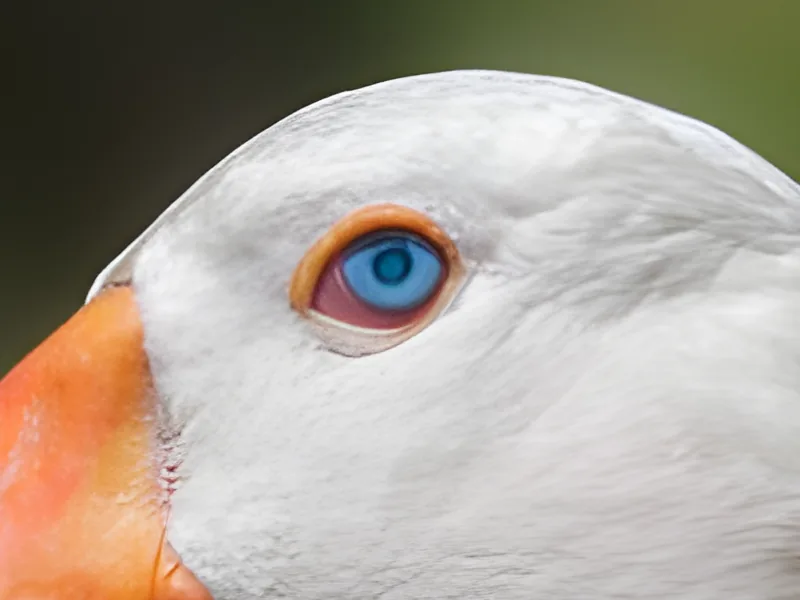
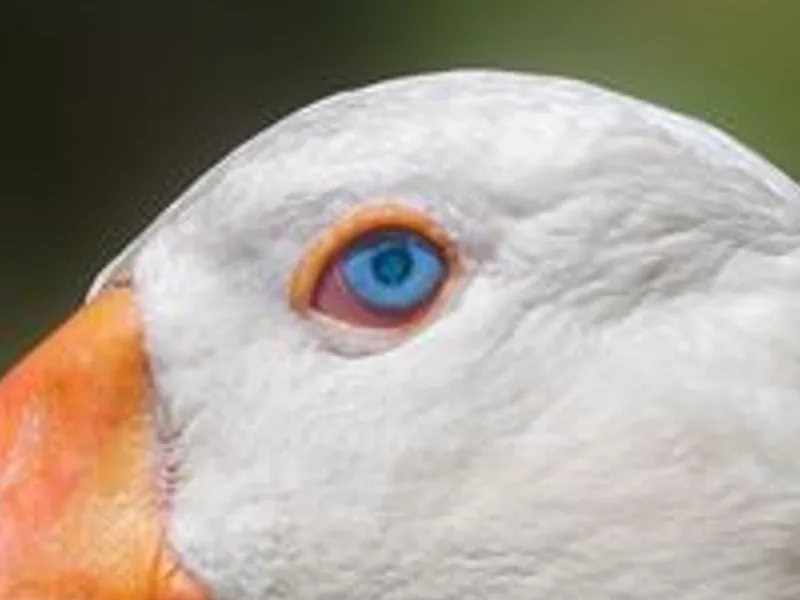
The AI upscaling crops, next to the real original.
Each crop is 400 × 400 pixels of the 2500 × 1660 frame; the files are not resized. Open one in a new tab to see it pixel for pixel.
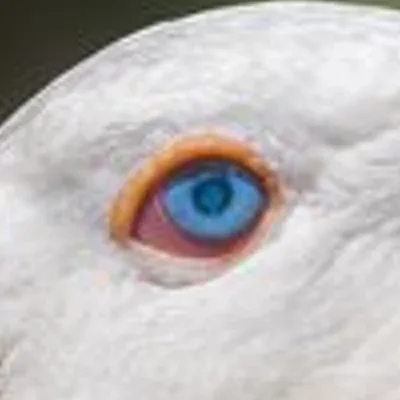
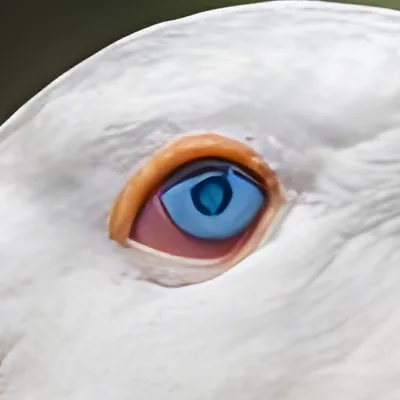
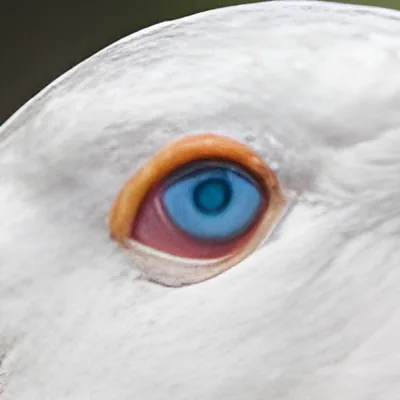
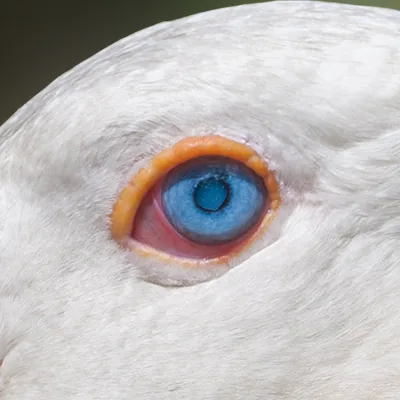
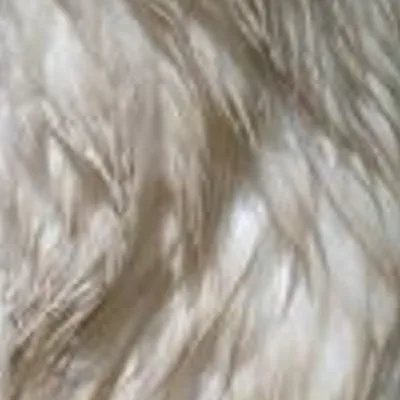
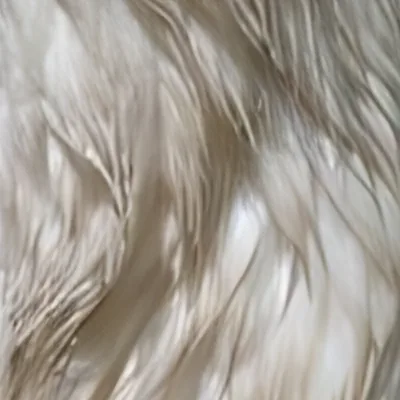
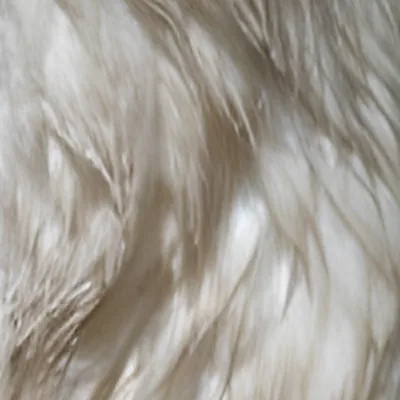
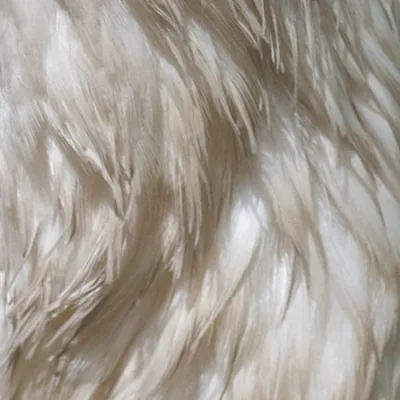
What we see. Both runs are far sharper than the input: edges of the eye ring, the beak and the feathers are clean. Neither brings back the fine strands and texture of the original; the AI upscaling smooths them into soft, even areas. Run 1 drew the pupil as an irregular dark shape that the real eye does not have. Run 2 kept the pupil round and is the one to use when a result has to look right close up, at nearly twenty times the wait on this machine.
What the “What changed” panel reported.
After each AI upscaling run, OpenPixels shrinks the result back to the input size, compares it with the input and shows these figures [5]. They are copied from the screen.
| Run 1, Photograph | Run 2, best quality | |
|---|---|---|
| Summary | 16.2x sharper | 16.8x sharper |
| Sharpness, before → after | 2.57 → 41.64 | 2.57 → 43.18 |
| Noise, before → after | 0.160 → 0.234 | 0.160 → 0.267 |
| PSNR | 39.54 dB | 39.67 dB |
| SSIM | 0.9888 | 0.9877 |
| Verdict | Faithful to the original | Faithful to the original |
“Faithful” means the shrunk result still matches the input (SSIM at least 0.7 and PSNR at least 20 dB) [6]. The noise figure rose in both runs; this photo had little noise to begin with, so this AI upscaling test says nothing about noise removal.
What the numbers do not say. We also compared each result with the full-size original (PSNR over all pixels, our own script). Plain bicubic scored 35.1 dB, run 1 34.0 dB and run 2 33.9 dB. AI upscaling draws sharp edges where bicubic stays blurred, and a sharp edge in slightly the wrong place costs more on this measure than a blur does. Judge the crops, not one number.
Repeat this AI upscaling test in five steps.
- Download the input file (625 × 415, 24 KB).
- Open openpixels.app, press Choose a photo and pick the file. No account is needed to try.
- Set Size to 4×. Leave What is it on Photograph and Noise and grain on Reduce; leave the switches off.
- Press Enhance. The first run downloads the model; after that it works offline. Drag the slider to compare, and open The numbers to see the figures above.
- For run 2, set What is it to Photograph, best quality and press Apply changes.
You can compare on screen without saving anything. Saving the result takes a free sign-in on the website [7]. The photo stays on your device either way.
What this AI upscaling page does not cover.
- Other tools. We have only run OpenPixels. Upscayl, for example, also builds on Real-ESRGAN (see our Upscayl alternative page); the input file is public domain, so you can run it through any upscaler and compare.
- Faces, colour, backgrounds and anime. Each has its own model in OpenPixels and was off here.
- One photo is one photo. A different subject or a worse input will give different results.
Where each fact comes from.
- OpenPixels, models.js: the two model files and their sizes; which setting picks which model.
- OpenPixels, MODELS.md: each file's provenance, licence (BSD-3-Clause for both), sha256, and the half-size weights.
- OpenPixels, model-hub.js: the pinned Hugging Face commit.
- OpenPixels, ort.js: WebGPU, or the processor.
- OpenPixels interface text: the What changed panel and how its figures are measured.
- OpenPixels, options.js: when a result counts as faithful; the default settings.
- OpenPixels interface text: no account to try; saving takes a free sign-in.
Try AI upscaling on your own photo.
The same app enlarges photos as an image upscaler, takes them to 4K and fixes pixelated images.
Open OpenPixels →About this AI upscaling test.
Can I repeat this AI upscaling test myself?
Yes. Download the 625 × 415 input file from this page, open openpixels.app, choose the file, set Size to 4×, leave What is it on Photograph and Noise and grain on Reduce, and press Enhance. The app shows the same What changed panel that is quoted on this page.
Which AI upscaling models does OpenPixels use?
Five upscaling models, all from the Real-ESRGAN family. Photograph with Reduce uses realesr_general_x4v3_dn50.onnx (4.9 MB). Photograph, best quality uses realesrgan_x4plus_w16.onnx (33.7 MB). Every file, its licence and its sha256 checksum are listed in MODELS.md.
How long does AI upscaling take in the browser?
On our Apple M2 laptop in Chrome, once the model had downloaded, the 4× job took about 3 seconds with Photograph and about 55 seconds with Photograph, best quality. The first run also downloads the model, so it takes longer. Your device will give different times.
Is the photo uploaded during AI upscaling?
No. OpenPixels runs the model in your browser tab, and the photo never leaves your device. Only the model files are downloaded, the first time you use them.
Does AI upscaling bring back the real detail?
Not entirely. In this test the results are much sharper than the small copy, but fine feather texture from the original did not come back, and the default model drew the pupil in a shape the real eye does not have. The crops on this page show both.
Does this page compare OpenPixels with Upscayl or other upscalers?
No. We have only run OpenPixels. Upscayl also builds on Real-ESRGAN; the input file is public domain, so anyone can run it through another tool and compare.